How do I sync between Windows and Android/iOS?
VoicePad can transfer dictation history between a phone and computer over your local WiFi network. Your devices discover each other automatically; a cloud account is not used for the transfer.
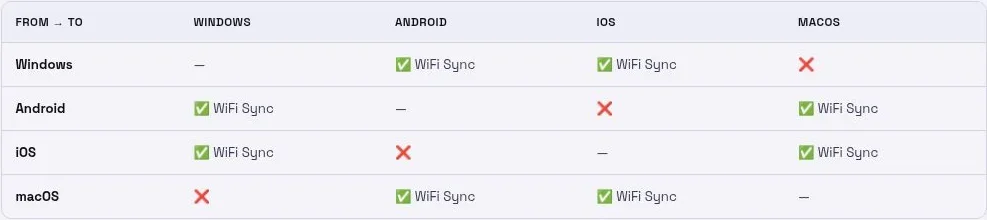
Supported pairs
- Android ↔ Windows
- iPhone or iPad ↔ Windows
- Android ↔ macOS
- iPhone or iPad ↔ macOS
Direct Android ↔ iOS and Windows ↔ macOS sync are not documented as supported. Use a supported phone–computer pair.
Set up Windows and mobile
- Connect both devices to a local network that lets them communicate.
- On Windows, open Settings → Mobile Sync and enable WiFi Sync.
- Allow VoicePad through the firewall for your trusted private network if prompted.
- On Android or iOS, open Settings → Sync and enable WiFi Sync.
- Keep both apps open and allow time for discovery.
- Make a short test dictation and check the other device’s history.
Using macOS
Open Mobile Sync on the Mac and start the sync server. Enable WiFi Sync on your phone and use Sync Now if shown.
What transfers?
Sync transfers transcript text and its history information. Audio is not transferred. The Help Center lists dictionary and settings sync as planned.
Pull Windows notes into Android
If notes are missing on your phone, try Settings → Sync → Import from Windows App, then refresh history. If discovery fails, use the troubleshooting guide below.
Related guides
More platform-specific guidance: VoicePad Help Center.