How do I change the theme, font and text size?
Choose an appearance that makes VoicePad comfortable to read. The Help Center describes three themes and desktop font controls; availability can depend on Pro access and your build.
Choose a theme
- Open Settings → Appearance, or the theme section shown in your app.
- Choose Midnight / Dark, Light or Arctic Frost.
- Check the transcript and sidebars in your normal lighting.
- Dark: a darker interface for dim surroundings.
- Light: a bright background for daytime use.
- Arctic Frost: cool blue and violet styling.
If a theme displays an upgrade prompt, check your trial or Pro status.

Change the Windows font
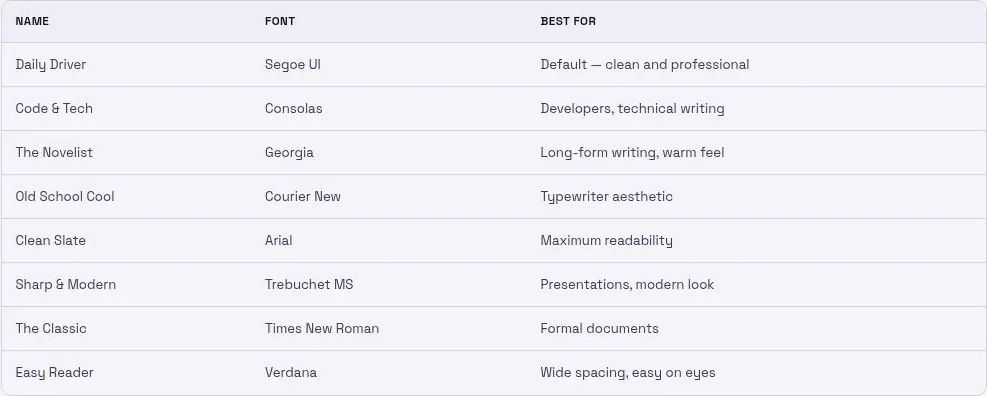
Open Settings → Font where available. The documented presets are:
- Daily Driver — Segoe UI
- Code & Tech — Consolas
- The Novelist — Georgia
- Old School Cool — Courier New
- Clean Slate — Arial
- Sharp & Modern — Trebuchet MS
- The Classic — Times New Roman
- Easy Reader — Verdana
Use the size slider to make the text comfortable to read. The older Windows guide lists a 9–18 pt range; follow the values available in your app. Mobile and macOS controls may differ.
If the font does not change
- Select another preset, then select your preferred one again.
- Check the transcript area for the change.
- Restart VoicePad if the setting still has no visible effect.
Use an offered preset rather than assuming an arbitrary font is installed. Changing the interface font does not control the font in the app where you paste your text.